Product guide

ServiceRunner help and how-to guides.

Learn the everyday workflows: booking a visit, finishing field work, collecting payment and managing your business.

Start here

How-to guides

Each guide names the screen where the work begins. Your role and enabled modules determine which screens you can open.

Phone

Set up calling and automated texts

Use a shared company line, direct staff numbers or a dedicated texting number.

  1. Open Settings, then Phone lines. Choose calls and texts, or keep your current calling provider and add a toll-free business texting number.
  2. Choose a new local or toll-free number, or start a request to transfer your current business number. Complete carrier verification before sending texts.
  3. For calling, choose who answers, connect their devices and set up voicemail or a phone menu. For texts, select your automated sender and give your team access to Messages for two-way conversations on Unlimited.
Open Phone lines in the app
Office

Schedule and dispatch a visit

Keep the customer, site, crew and appointment together.

  1. Open Dispatch and create a job for the customer and site.
  2. Choose the visit date, assign the technician or crew, and save.
  3. Use the board to follow status and reschedule or plan a return visit.
Open Dispatch in the app
Field

Finish a job from the phone

The assigned visit brings the site and equipment history into one place.

  1. Open My Jobs and choose your assigned visit.
  2. Record time, notes, readings, photos and materials as the work happens.
  3. Complete required close-out checks before marking the job finished.
Open My Jobs in the app
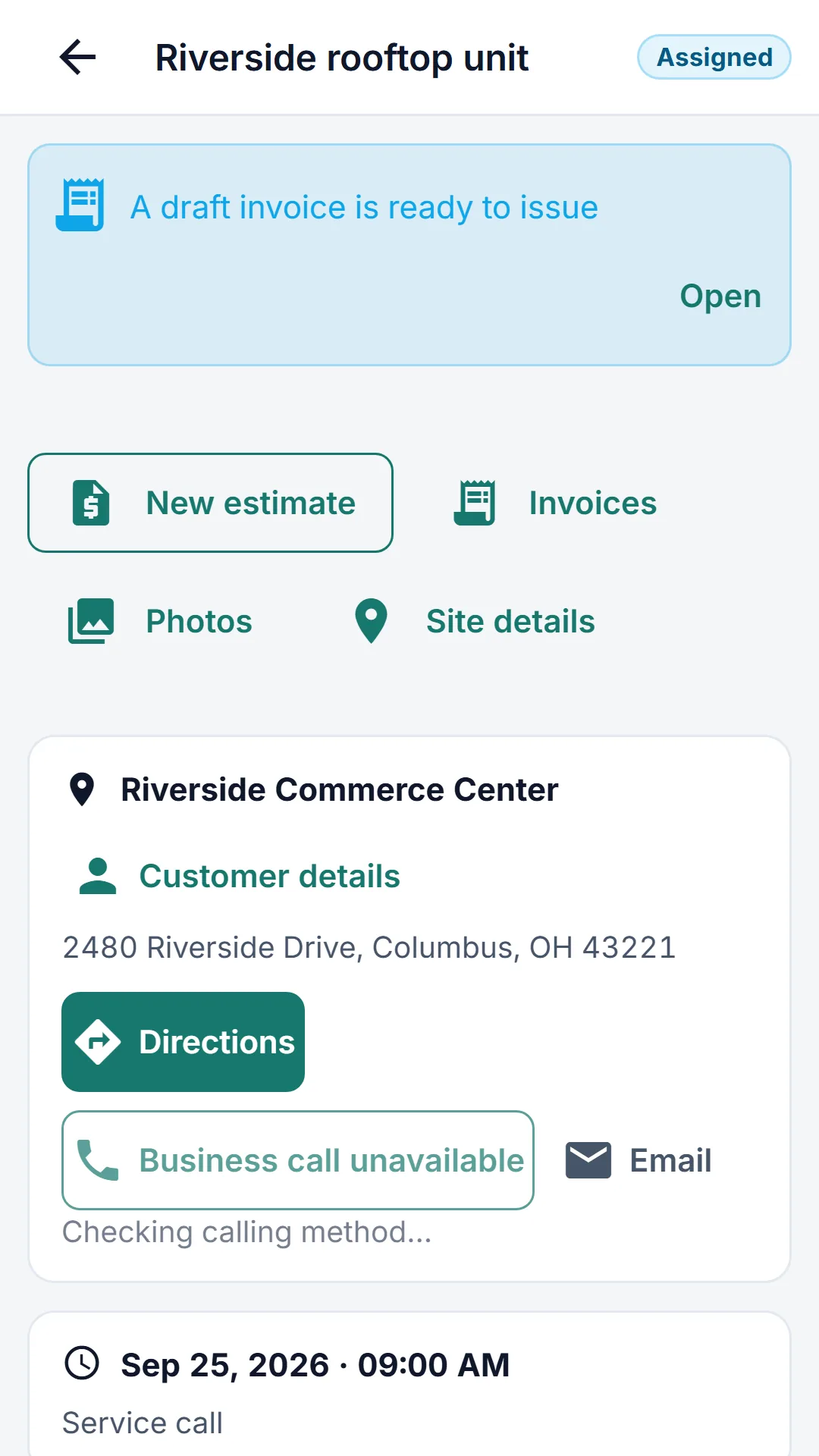
ServiceRunner phone job screen showing the visit and field work
Actual app capture: a job on the phone.
Expenses

Capture a receipt

Keep multiple receipt pages together before sending for approval.

  1. Open Expenses and choose New expense.
  2. On a supported installed app, Scan receipt detects and crops document pages; the browser and older app versions offer photo capture.
  3. Check the pages and totals, then save a draft or submit.
Open receipt capture in the app
Billing

Turn finished work into an invoice

Review the completed job before anything goes to the customer.

  1. Open Invoices or the finished job and start a draft.
  2. Check line items, tax, payment terms and the customer before issuing.
  3. Send the invoice, then track payments and the remaining balance. Issuing and payment require a connection.
Open Invoices in the app
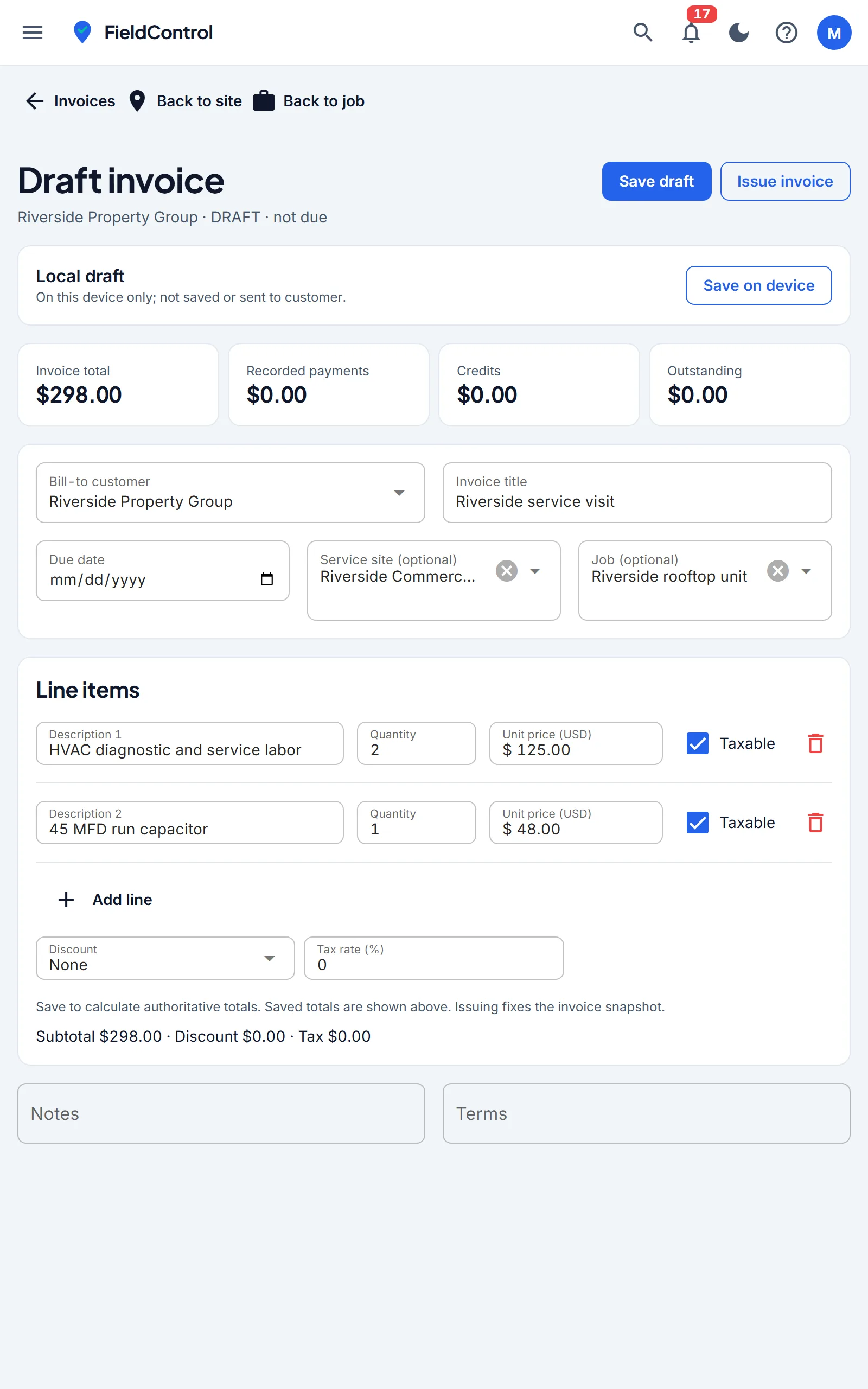
ServiceRunner invoice workspace with customer invoices and outstanding balances using example data
Actual app capture with example data: the invoice workspace.
Estimating

Prepare and send an estimate

Keep the scope, price, customer approval and follow-up together.

  1. Open Estimates and start an estimate for the customer and site.
  2. Add work and materials, review options, tax and payment terms, then save the draft.
  3. Review the customer-facing estimate before sending its approval link. Follow its status and convert accepted work into a job.
Open Estimates in the app
Customers

Put your customer portal on your website

Give customers one company portal link with your branding.

  1. Open Settings, then Customer portal. Enable the portal and review its branding and preview.
  2. Copy the portal link or website HTML link and add it to your company website.
  3. Customers sign in with an email or text link matching their account. Test with a client account and verify its appointments, invoices and available payment actions.
Open Customer portal settings
Bookkeeping

Connect QuickBooks and review sync

Check the company and mapping before sending financial records.

  1. Open Integrations and connect the correct QuickBooks Online company.
  2. Review the company currency, account and tax mapping, and import/export preview before enabling sync.
  3. Check sync results and resolve refused records before retrying. Keep ServiceRunner and QuickBooks document ownership clear.
Open Integrations in the app
Good to know

Common questions

Search these answers, or send us your exact workflow and we will walk through it with you.

What works without a connection?

Prepare current files while connected. Supported field, task and checklist edits can be retained on the device and synchronized later. Photo uploads, issuing an invoice, taking a payment and accounting sync need a connection.

Does scanning actually crop a receipt?

On a supported installed iPhone or Android app, Scan receipt opens the native document scanner for edge detection and cropped pages. Android also offers image cleanup. A browser or older installed app uses ordinary photo capture; update the installed app for document scanning.

Can we use our own phone number?

The business phone option has number setup and porting workflows. Activation and porting depend on provider availability and review. Contact us if you need help planning the move.

Are automated texts available without moving our calls?

Ask us which sender-number options are enabled for your account. Automated texts need a configured, verified messaging sender; the full calling setup is a separate choice.

Is Tap to Pay available on every phone?

No. Tap to Pay needs a supported device, an eligible payment account and the platform entitlement where required. Card-reader options depend on the connected payment provider.

Do we get a full accounting ledger in ServiceRunner?

Yes. Under Money, then Accounting, you get a chart of accounts, journals, a trial balance, profit and loss, a balance sheet and bank reconciliation. Month-end close is its own item under Money. To start the books, choose a start date and record your opening balances. If your accountant works in QuickBooks, you can also sync with QuickBooks Online or export to QuickBooks Desktop.

Can we manage projects as well as service jobs?

Every site has tasks with list and board views, plans with pinned tasks and equipment, and chat. Switch on the optional Projects module to see all your sites in one portfolio: open and overdue tasks, drawings, alerts for failed drawings and jobs past their scheduled end, the next visit and the latest daily log. Construction-enabled sites add RFIs, submittals, daily logs and change requests. There is no Gantt-style timeline or critical-path scheduling, so ask us about the fit for your workflow.

What happens when a customer texts STOP?

The number is added to your opted-out list and no automatic or manual text goes to it again. Your team cannot turn texts back on; only the customer can, by texting START to your number. The list is under Settings, then Opted out of texts.

Can we ring up a walk-in sale?

Yes. New sale takes items from a keypad or your catalogue and creates the invoice. Take the payment by sending a link, recording cash or a cheque, or, in the installed phone app where a card reader or Tap to Pay is supported and your payment account is connected, by card. Tap to Pay on iPhone is not turned on yet.

How do we start?

Book a demo to see a job like yours, or join the waitlist for an account invitation. Payments, phone service and QuickBooks each need their own setup before first use.
Want to see your own workflow?

Show us a typical job and we can walk from booking to the finished invoice together.

Book a demo